Architecture
What Is AI Rendering? A Practical Guide for Designers and Homeowners
Renderist Team ·
What does AI rendering actually do with your design?
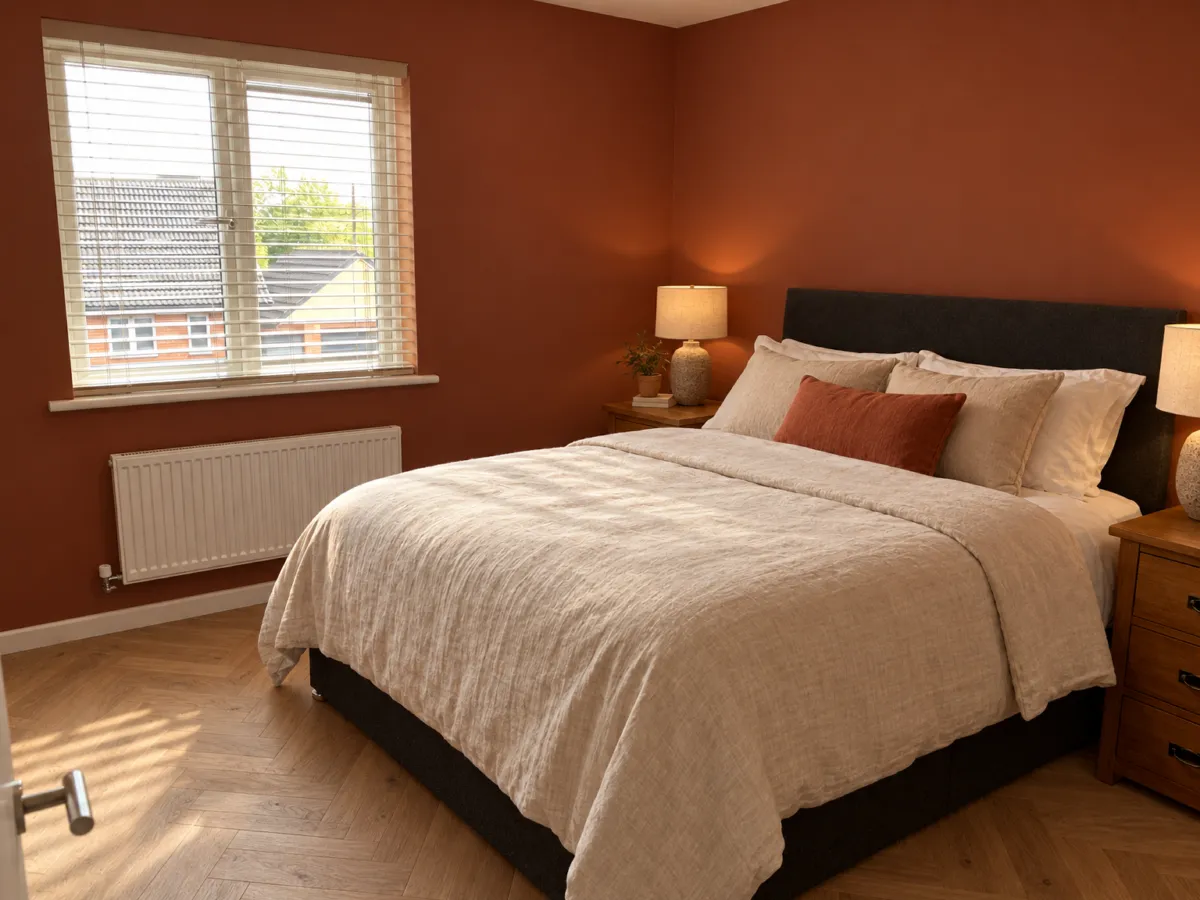
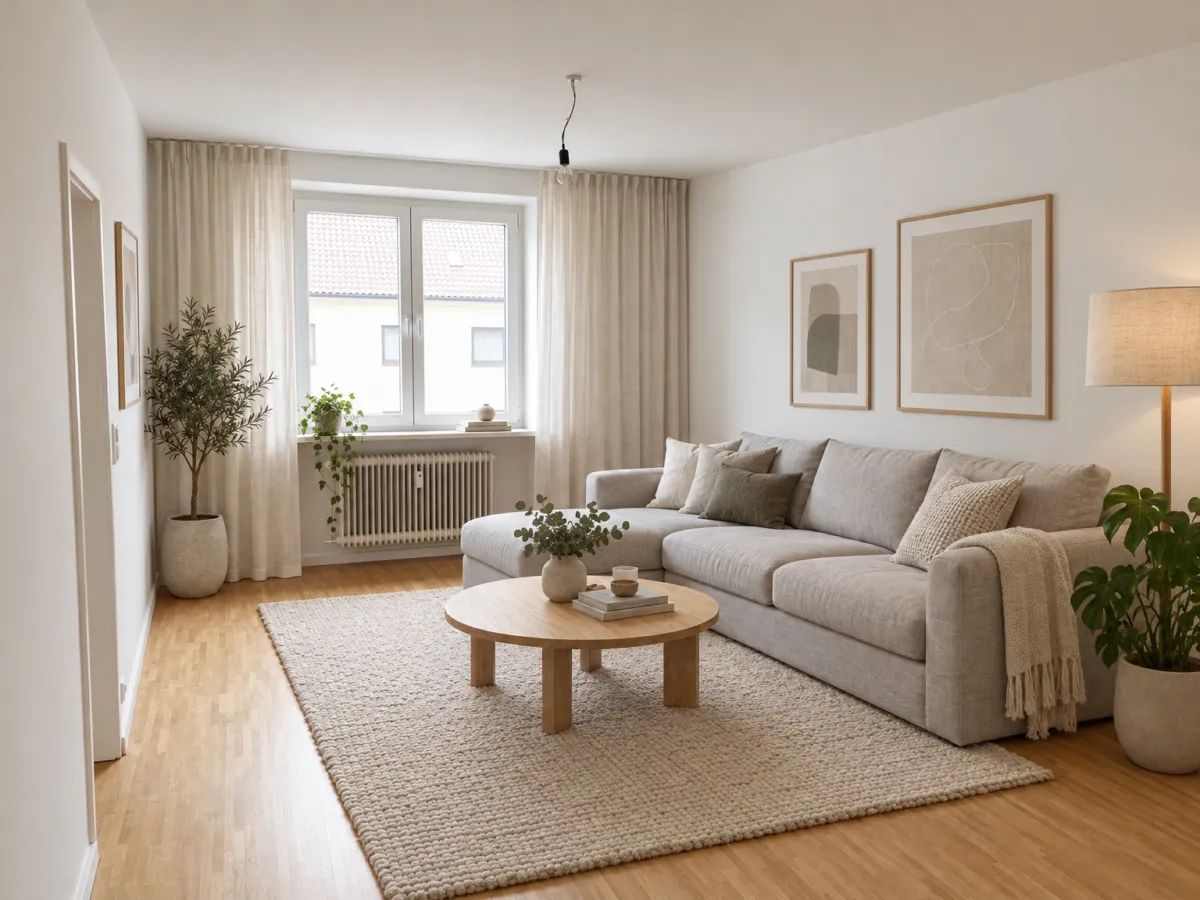
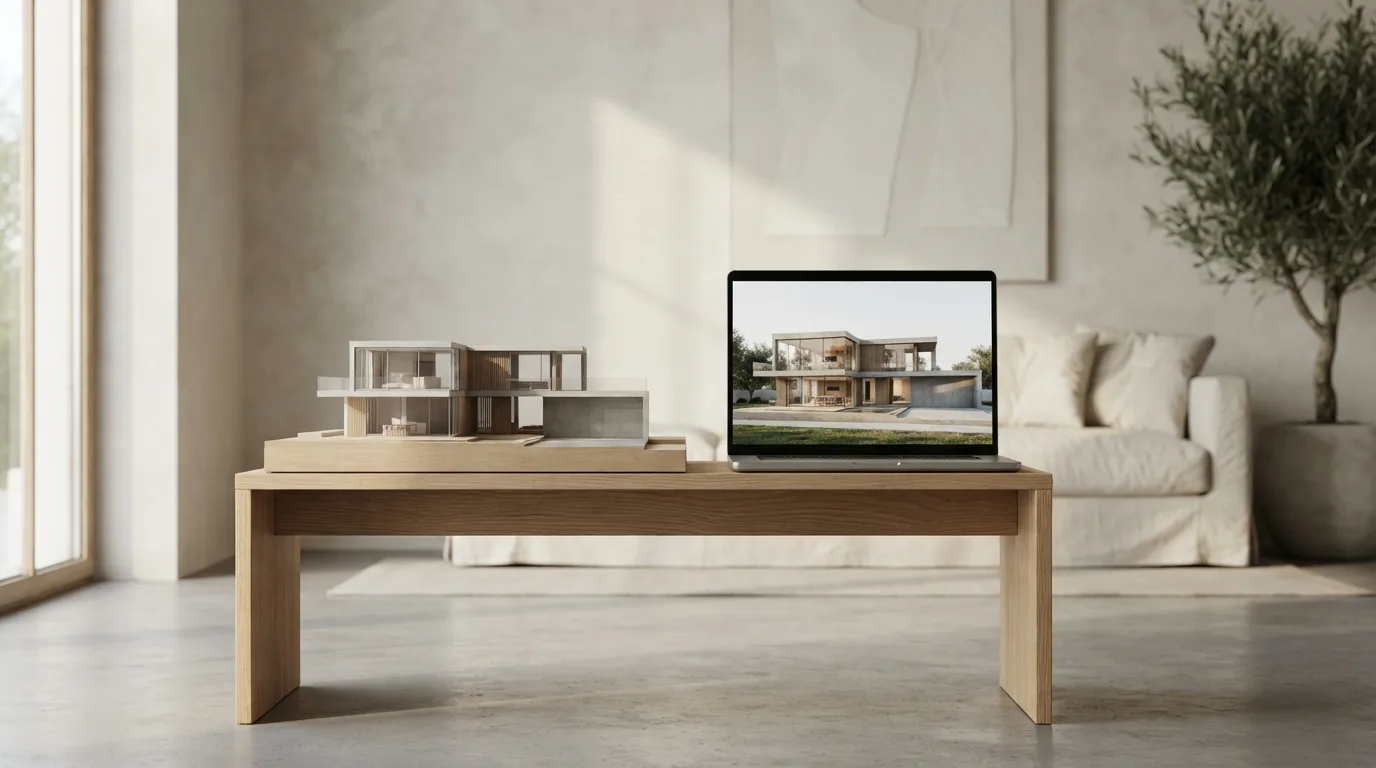
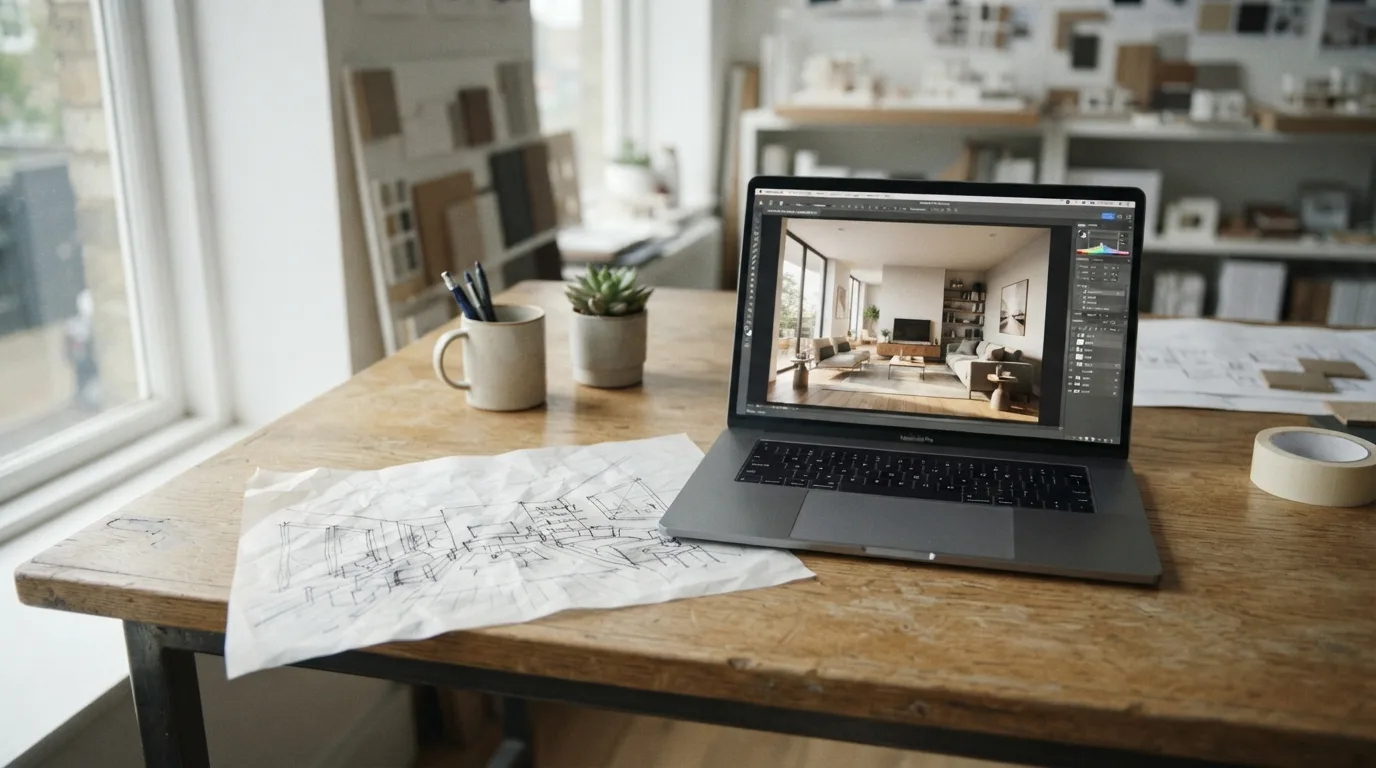
AI rendering turns what you already have into a finished picture. Upload a photo, a SketchUp screenshot, a hand sketch or a floor plan and a purpose-built engine returns a photorealistic render almost instantly. That is the whole trick: the picture starts from your drawing, not from a typed description.
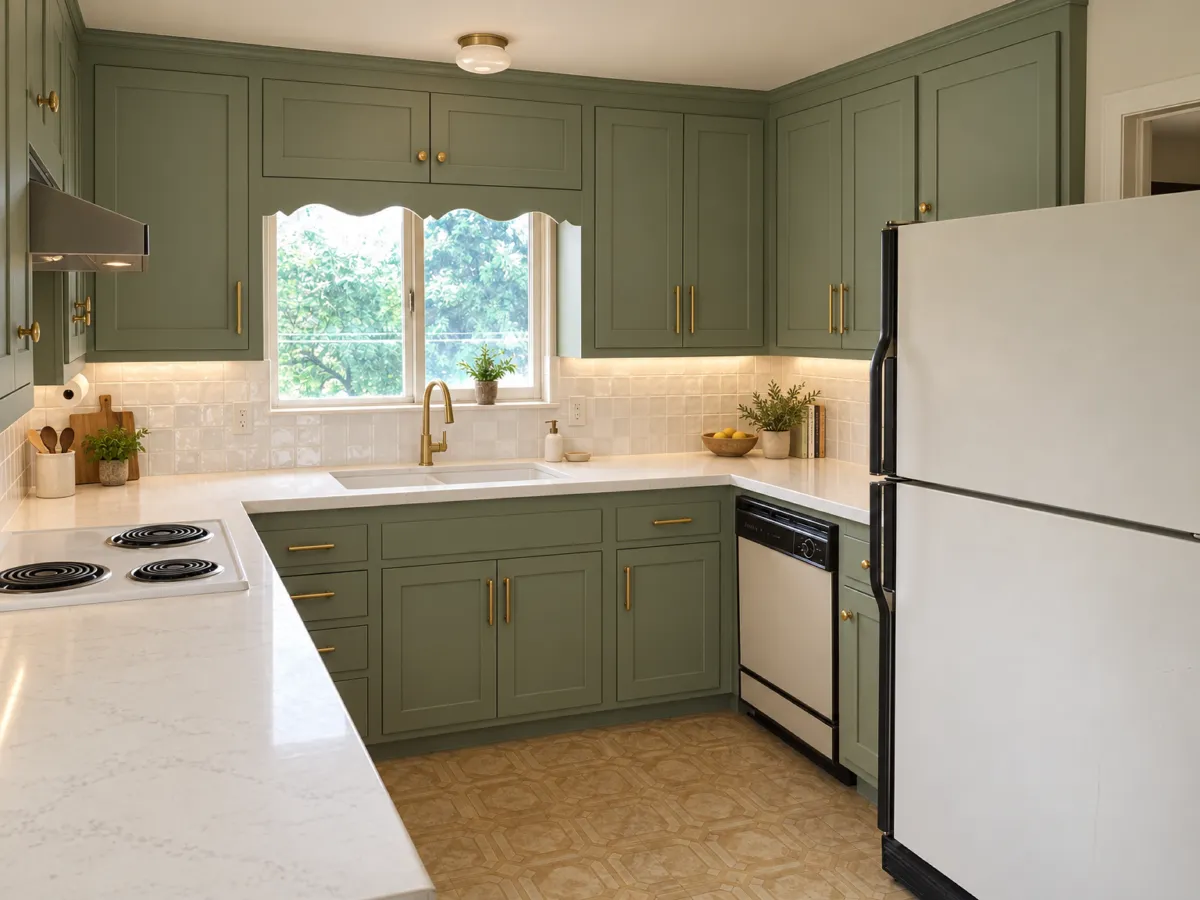
That distinction matters more than it sounds. General-purpose image generators build a scene from words alone, so the room they show is invented. Rendering tools built for architecture work from the actual design, which is why an AI render of your kitchen keeps your window where you drew it. The mood can change, but the layout stays yours.
The practical side is speed. AI Render Studio puts its average render at about 30 seconds, with exterior, interior, sketch-to-render, floor plan, landscape and masterplan tools each costing 1 credit. Sixty-plus styles tuned for architecture and interior design mean you can test a look without rebuilding the model.
For a homeowner, that changes the conversation. Instead of approving a single visualization weeks later, you see several versions while the concept is still open and cheap to change. For a designer, it means files from SketchUp, Revit, Rhino, AutoCAD, Blender, ArchiCAD, 3ds Max, Enscape, Lumion and Photoshop all feed the same pipeline.
Costs are small enough to test. AI Render Studio offers a free trial with 3 credits and no card, then plans from $19 a month or a one-time pack from $49.
How fast is AI rendering compared with classic 3D visualization?
Classic 3D work has a fixed order: model, materials, lighting, then a render that can run for hours. Any change to the room means going back through those steps. AI tools skip most of that queue, which is why a revised view lands in minutes rather than the next morning.
| Stage | Classic 3D | AI rendering |
|---|---|---|
| Starting point | Full 3D model with materials | Photo, SketchUp screenshot, hand sketch or floor plan |
| Time per view | Hours of setup and render time | Seconds to a few minutes |
| Changes | Rebuild and re-render | New input, new render |
| Best use | Final, buildable documentation | Early options and client presentations |
The trade-off sits in control. A 3D model holds exact dimensions, real materials and the lighting you set, so the output matches what will be built. AI tools base each render on your actual design rather than a text prompt, but they still interpret. Small details can drift.
That is why the practical split is by stage, not by preference. Use AI early, when the design is still moving and you need five versions of a room before lunch. Keep classic 3D for the architectural rendering that goes to a contractor or a planning submission.
Speed also changes how you talk to clients. When a fresh view takes minutes, you can show two lighting options in one meeting instead of booking a follow-up. The catch is volume: more renders means more decisions to review, so agree on what you are approving before you start generating.
Where does AI rendering still fall short?
The most common letdown comes from the reference, not the engine. If you feed it a blurry phone photo or a sketch with two unclear walls, the render will fill the gaps with something plausible and wrong. A window lands where you never planned one, a staircase loses its step count. Check the render against the drawing before you show it to anyone.
Resolution is the second trap. A wide shot can look convincing on a laptop and fall apart when blown up for a client board. Ask for a high resolution export only after the composition is settled, because reworking a big file costs more time than reworking a small one.
Style presets are the third. The same AI styles that make an exterior look finished can also smooth away the details that matter, like a handrail thickness or a recessed downlight. Treat every preset as a starting point for the design conversation, not as the final word on it.
Where AI genuinely struggles is consistency across a set. One room renders beautifully, the next comes back with different flooring and a shifted ceiling height. Traditional 3D tools keep every view locked to one model, which is why they still hold the line on large projects. AI rendering is faster at exploring, slower at staying identical.
The practical rule: use AI to test ideas and win quick approval, then switch to a model-based workflow once the design is fixed.
Which inputs work best for an AI render?
A photo of the existing room is the fastest way to get a believable result, because the tool reads real light, real materials and real proportions instead of guessing them. A hand sketch works almost as well when you only need to test a mood before committing to a layout. A floor plan suits early conversations about how rooms connect.
The weakest input is a bare text prompt. General-purpose image generators build a scene from words alone, which is why the furniture and window placement rarely match what you drew. Rendering tools made for architects instead start from your actual geometry, so the render keeps your walls where you put them.
That is the line worth checking before you upload anything: does the tool accept a 3D model or a SketchUp view, or does it only take a picture? Plugins matter here, since a tool that plugs into SketchUp, Revit or Rhino saves you exporting files by hand. The free trial credits are enough to compare one photo and one sketch of the same room.
For interior design work, a straight-on phone shot with the ceiling and floor edges visible beats a wide-angle lens that bends the walls. A clean sketch with clear depth cues beats a scribble with overlapping lines. Feed it a messy reference image and you spend more time correcting the render than you saved.
What does AI rendering cost in practice?
The cost question is not the subscription. It is how many attempts a picture takes before it is worth sending to a client. Every tool bills per image, so a render you reject still costs money, and the habit of generating ten versions to find one good one adds up faster than the monthly fee.
That is why the free tiers matter more than the headline price. A trial with a handful of images lets you test whether the engine reads your drawing correctly before you commit. Run the same view through it twice and compare: if the second attempt drifts, you will be paying for corrections rather than results.
Architectural rendering also bills your time. A tool that needs a clean model and tidy materials will eat an afternoon of preparation, while one that accepts a rough sketch or a screenshot from your modeling software skips that step. For architects juggling several projects, the saved hours usually outweigh the credits.
Interior design adds its own trap. Fabrics, wood grain and lighting are where cheap output shows, and a homeowner will spot a plastic-looking sofa immediately. Budget a few extra attempts for those rooms instead of assuming the first pass is final.
Watch the licensing terms too. Commercial rights decide whether a picture can go into a client presentation or a planning submission, and that detail sits in the fine print rather than the price. Check it before you build a workflow around any tool.

How do you start with AI rendering without risking a project?
Start with a scene you already have, not with a blank prompt. Tools built for architecture base each image on the actual design rather than on a written description alone.
Then run one small test before you commit to anything bigger:
- Pick a corner of the project you know well, so you can spot a wrong wall or a missing window at a glance.
- Render it once, change nothing, and compare the result with the drawing it came from.
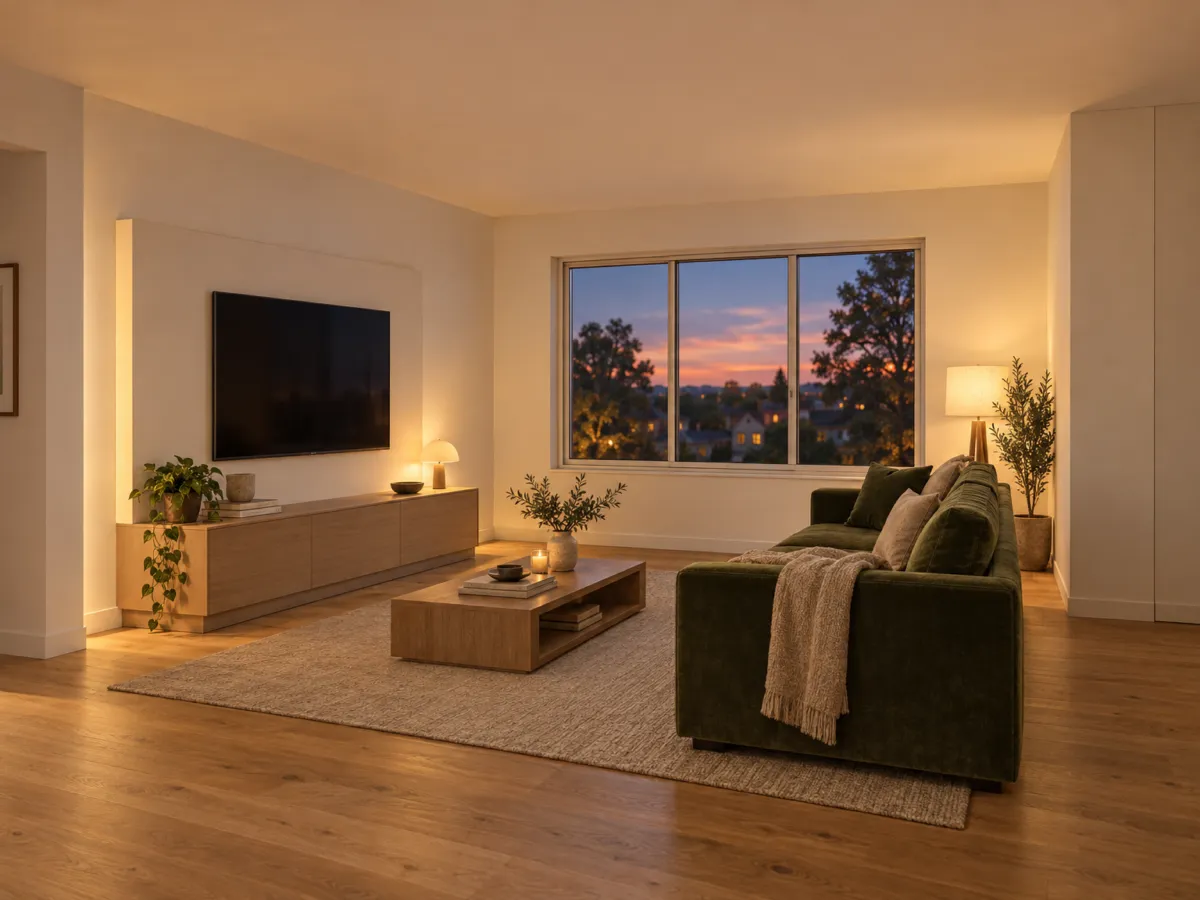
- Try the same view at two different times of day, since mood and light are where these tools are strongest.
- Show the image to the client only after you have checked scale, materials and openings yourself.
Where it usually goes wrong is expectations. An image that looks finished invites people to treat it as a promise, and a wall that moved half a meter in the render becomes a complaint later. Treat every output as a sketch you still have to verify.
Keep the first run cheap. Free tiers and trial credits let you start rendering a single room without spending money, and a one-off credit pack suits a designer who needs a handful of images rather than a subscription.
Pytania czytelników
How long does an AI render take?
A single render usually comes back quickly, since the engine works from your existing drawing rather than rebuilding the scene from scratch. That covers the exterior, interior, sketch-to-render, floor plan, landscape and masterplan tools. Your own wait depends on file size and how busy the service is.
Can I try AI rendering for free?
Yes, AI Render Studio lets you test the engine before paying, with a free trial that needs no card details. That is enough to test one input type against another and see whether the output holds up close to the camera. Check the terms on the site before you use free images in a client presentation.
Does AI rendering work with SketchUp and Revit models?
AI Render Studio accepts files from SketchUp, Revit, Rhino, AutoCAD, Blender, ArchiCAD, 3ds Max, Enscape, Lumion and Photoshop. You can also start from a photo, a hand sketch or a floor plan instead of a full model. The cleaner the view you upload, the less the engine has to guess.
Can I use AI renders in client work?
AI Render Studio grants full commercial rights on its free trial and paid plans. Plans start at $19 a month, or you can buy a one-time pack from $49 with credits that never expire. Read the license terms yourself before you put a render into a contract set or a planning submission.