Architecture
Floor Plan to 3D AI: Turn a 2D Layout into a Realistic View
Renderist Team ·
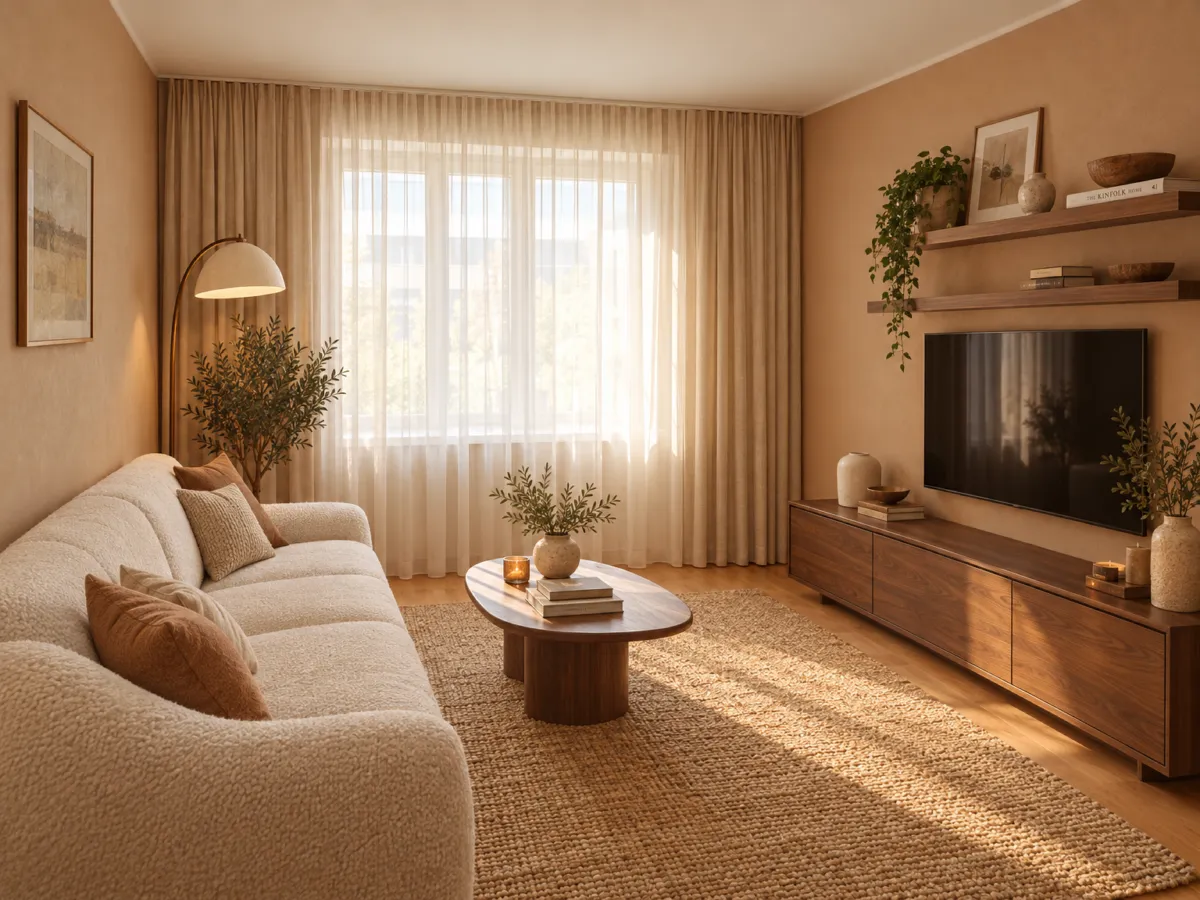
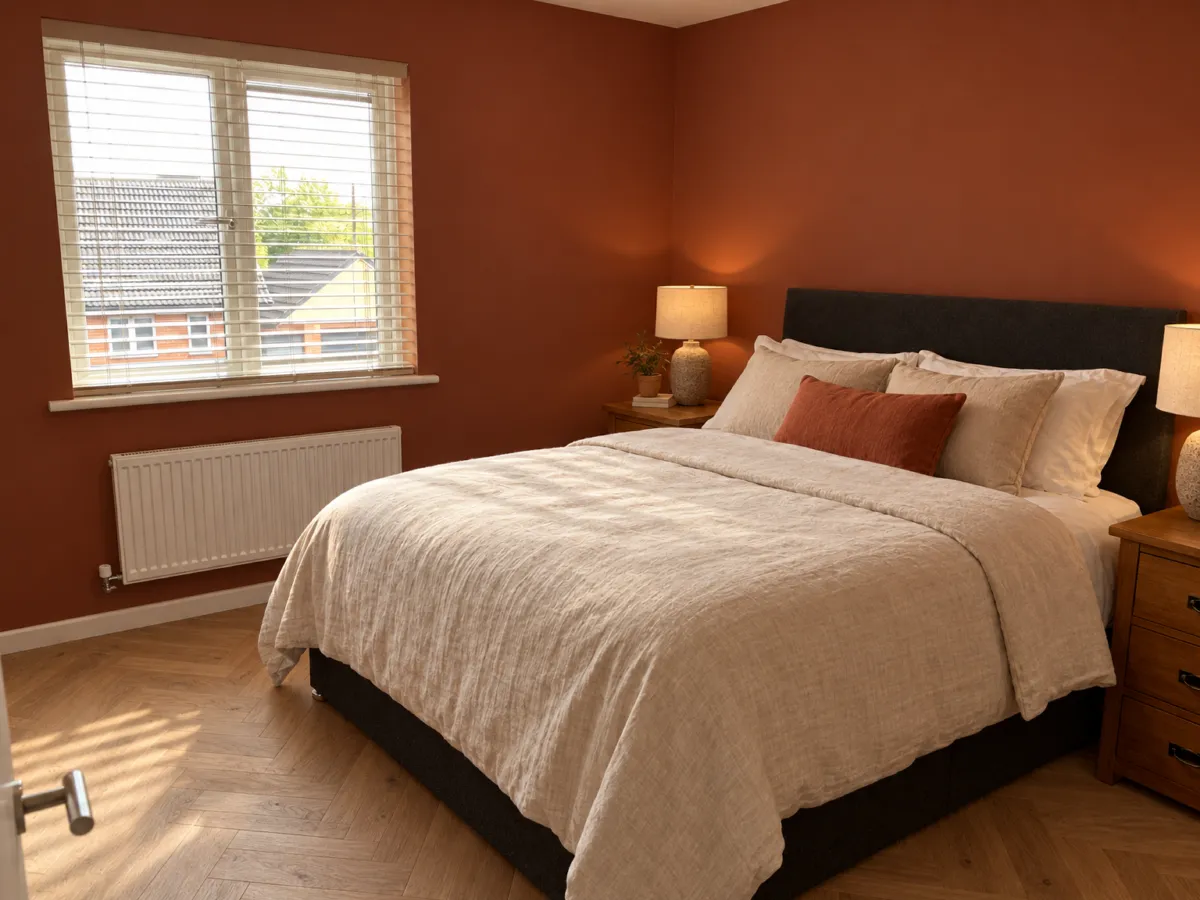
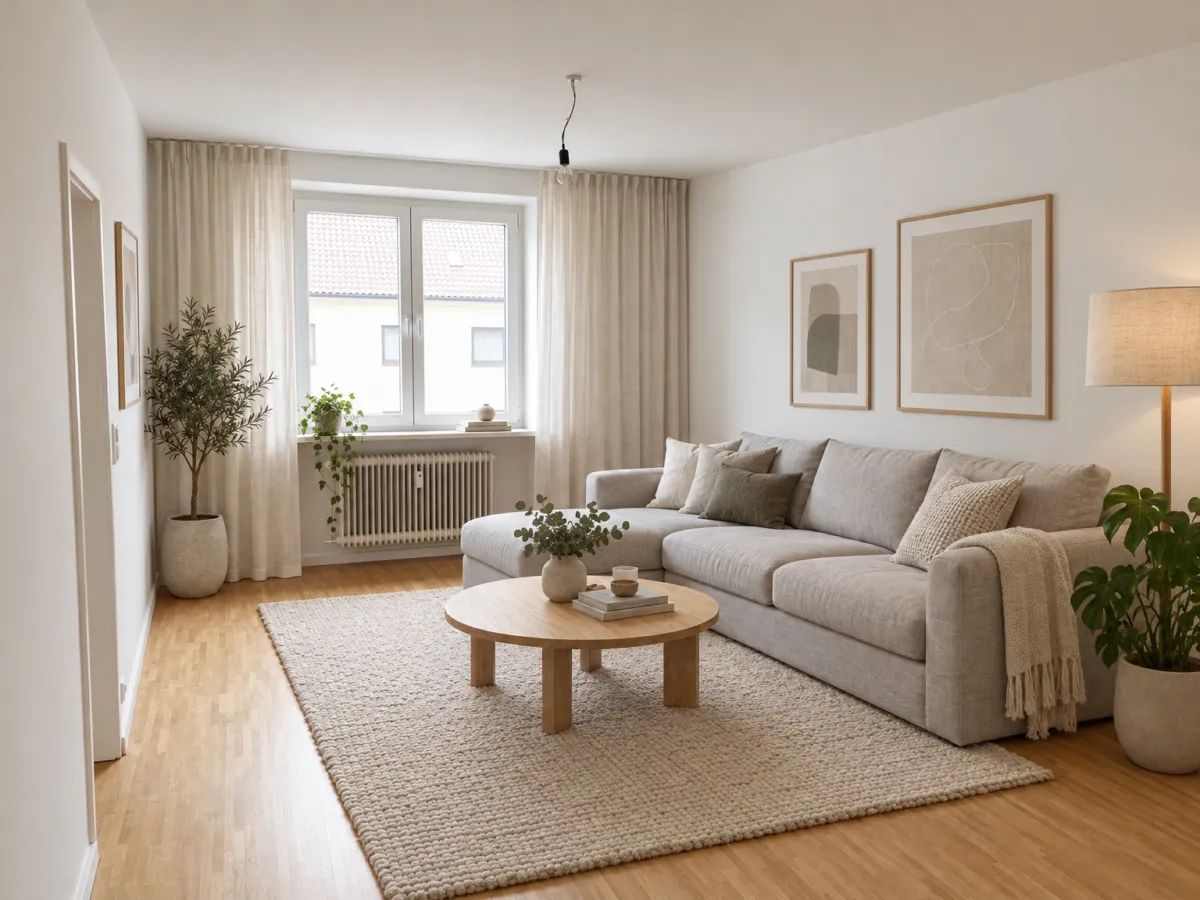
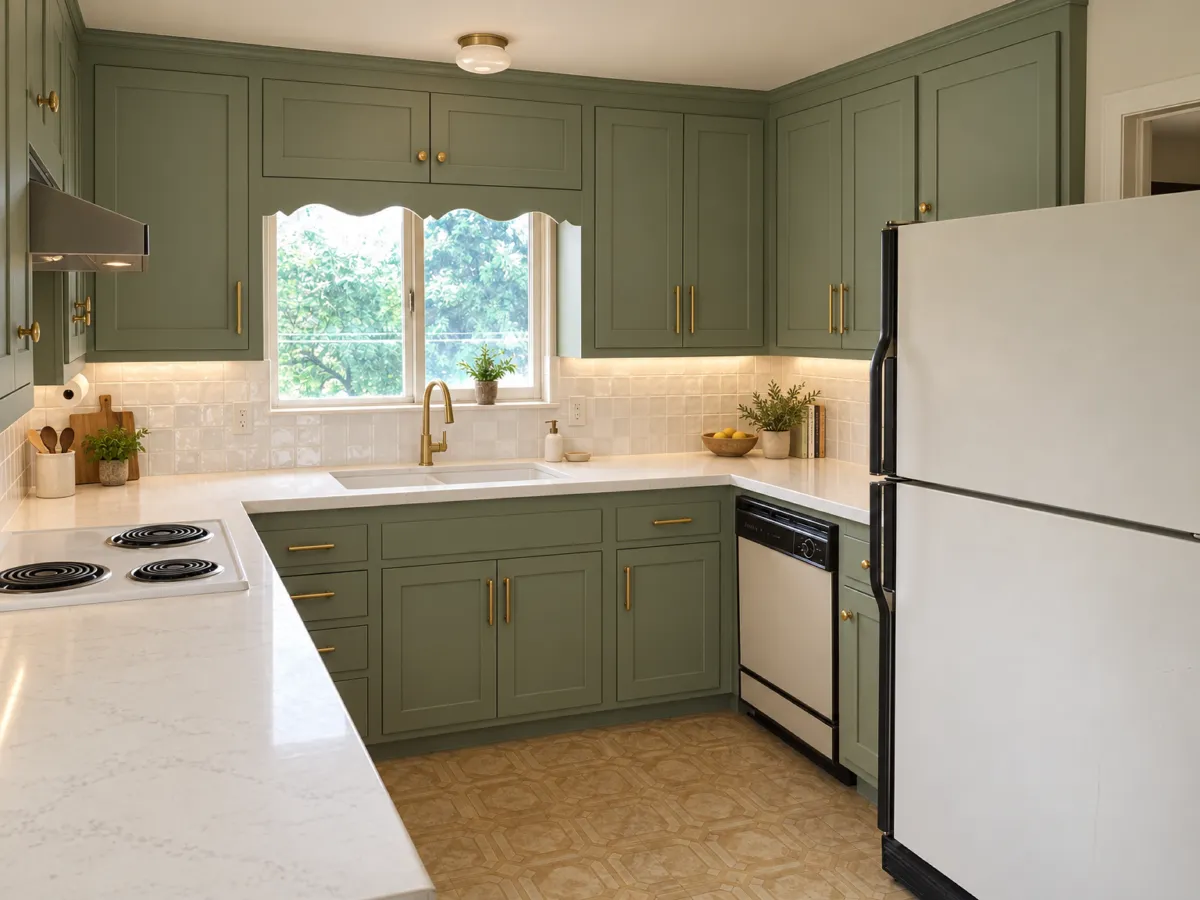
If you have ever stared at a flat architectural drawing and struggled to picture how the room would actually feel, floor plan to 3d ai tools are changing that workflow entirely. Instead of building a digital model from scratch or waiting for a full render, you can now use an image of your layout as a starting point. The result is a fast, realistic preview that helps you test furniture placement, wall colours, and the overall atmosphere before committing to a design.
What You Can Realistically Get from a Floor Plan
When you feed a 2D drawing into an AI visualisation tool, you are not getting a perfect CAD model. You are getting a visual interpretation. That distinction matters. The AI looks at the lines, labels, and symbols on your plan and tries to guess where the walls, windows, doors, and major furniture pieces sit.
In practice, you can expect the following:
- A strong sense of proportion: The AI usually picks up on the ratio between room width, length, and ceiling height.
- Basic material cues: If your plan has notes for timber floors or a tiled bathroom, the output often reflects that.
- Furniture blocking: Simple rectangles labelled as sofa, bed, or table tend to appear as matching 3D objects.
- Lighting mood: The tool may infer daylight from window positions, giving you a brighter or softer scene.
What you should not expect is millimetre accuracy. A door might shift slightly, a window could change size, and decorative details you never drew will be invented by the AI. Treat the result as a design sketch, not a construction document.
How to Prepare Your Floor Plan for Better Results
The quality of the output depends heavily on the quality of the input. A messy, low resolution photo of a crumpled drawing will produce a messy visualisation. A clean, high contrast plan gives the AI much more to work with.
Before you upload anything, go through this quick checklist:
- Use a flat, straight-on photo or export: If you are photographing paper, stand directly above it. Avoid angled shots. A digital export from a floor plan app is even better.
- Remove clutter: Erase dimensions, grid lines, and excessive text. Too many annotations confuse the AI. Keep only the essential walls, doors, windows, and key furniture.
- Increase contrast: Make the walls dark and the background white. A black and white plan with clear outlines works best.
- Label the rooms simply: Words like kitchen, bedroom, or bathroom help the AI choose appropriate fixtures and finishes.
- Close the gaps: Ensure wall lines actually meet at corners. Broken lines can make the AI misread the room shape.
- Keep the file size reasonable: A sharp image around 1000 to 2000 pixels on the long side is usually plenty. Huge files do not always improve the result and may slow things down.
One common mistake is leaving furniture symbols that overlap with walls. If a sofa icon crosses a wall line, the AI may interpret it as a structural element. Move furniture slightly inside the room boundary before uploading.
Choosing the Right Viewpoint
Most floor plan to 3d ai tools let you generate multiple camera angles from the same plan. The angle you choose changes the story you tell. A wide angle from one corner shows the most space but can distort proportions. A straight-on view of a single wall feels more like a real estate photo.
For a living room, try a viewpoint from the entrance looking toward the main window. For a kitchen, position the camera as if you are standing at the counter looking back at the dining area. For a bedroom, a view from the doorway toward the bed usually reads instantly.
If the first output looks cramped, do not assume the room is small. The AI may have guessed the wrong ceiling height or pushed the camera too far back. Regenerate with a different angle before changing your plan.
Working With Imperfect or Hand Drawn Plans
Not every plan is a clean digital file. Many people start with a rough sketch on graph paper or a photo of an estate agent brochure. AI tools are surprisingly forgiving with these, but you need to set your expectations.
A hand drawn plan with wobbly lines will still produce a useful visual, but the AI will have to make more guesses. Walls may not be perfectly straight in the output. Furniture might be placed approximately rather than exactly where you drew it. The material finishes will be generic unless you write clear notes on the plan.
To improve a hand drawn plan, trace over it with a thick black pen before photographing it. Make the walls obvious and use simple rectangles for furniture. Write the room name in clear capital letters. The less ambiguity you leave, the better the AI performs.
Common Limits and How to Work Around Them
Every AI visualisation has limits. Knowing them in advance saves you frustration and helps you decide when to trust the output and when to treat it as a rough draft.
Wall thickness and openings: AI often misreads thin lines as walls and thick lines as something else. If your plan uses a single line for walls, the AI may struggle to place doors correctly. Use double lines for walls or thicken the single lines before uploading.
Ceiling height: Most plans do not include ceiling height. The AI will assume a standard height, usually around 2.4 to 2.7 metres. If your room has a vaulted ceiling or a low bulkhead, the visual will not show it unless you add a note.
Stairs and split levels: Stairs are notoriously tricky. The AI may show them as a ramp, a block, or ignore them entirely. If stairs are important to your design, consider generating a separate view focused on that area and adjusting your plan to make the stair symbol clearer.
Window and door styles: The AI picks a generic style. A sliding door may appear as a hinged door. A bay window may become a flat window. If the exact style matters, you will need to refine the result or use the visual as a mood reference only.
Text labels: Too much text confuses the AI. A plan covered in dimensions and notes will produce strange artefacts. Keep labels minimal and place them inside the room they describe.
Turning the First Draft into a Useful Visual
The first output is rarely the final one. Think of it as a conversation. You give the AI a plan, it gives you a version, you adjust the plan or the settings, and you try again. Each round gets closer to what you have in your head.
Start with a simple plan and generate one room at a time. A full house plan can work, but the AI may mix up adjacent spaces or bleed furniture from one room into another. Isolating a single room with a thick boundary line often produces a cleaner result.
If the AI places a wall in the wrong spot, go back to your plan and make that wall darker or thicker. If a piece of furniture looks wrong, remove it from the plan and let the AI fill the space naturally. You do not need to specify every object. Sometimes less detail gives the AI more freedom to create a believable scene.
Pay attention to the floor. A plan with a note saying oak floor will usually generate wood. A plan with no floor note may give you a generic grey surface. Small written cues on the plan can steer the material choices without needing any technical skill.
When to Use the Visual and When to Stop
A floor plan to 3d ai visual is perfect for early design conversations. Use it to show a client what a layout might feel like, to compare two furniture arrangements, or to decide between a dark and light colour scheme. It is fast, inexpensive, and easy to iterate.
It is not a replacement for a measured survey or a technical BIM model. If you need exact dimensions for construction, you still need a professional drawing. But for the moment when someone asks, "What would this room look like?", an AI visual from a simple plan answers that question in minutes.
Stop iterating when the visual communicates the idea clearly. Chasing perfection wastes time. A slightly imperfect render that shows the right mood and layout is more useful than a pixel perfect image that took hours to produce.
If you have a floor plan sitting on your desk or saved on your phone, it takes only a moment to see it as a realistic room. Renderist turns a photo or sketch into realistic visualisations with AI, and you can start with a free trial to test the workflow on your own plans. See how your floor plan looks in 3D and decide if the result fits your design process.